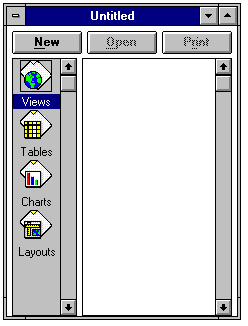
When ArcView is first executed, a new untitled project window is opened. This window includes several icons marked view, table, chart, and layout. This is the main project window, which allows you to create new views, charts, etc., or to open existing ones that you have already created in that project.
Help!If you are lost and don't know how to do something, ArcView has on-line help which is accessed by hitting the ? symbol in the top right corner of the display window.

 on the top tool bar.
Go to your local workspace directory either by typing the directory name into the pathname box or double-clicking on the directory with the mouse. Highlight the two coverages shown, Texas and Evap, and click on OK to add them to your view. They will show up as a bar in the view window legend with the name of the coverage shown on it. Click on the raised box to the left of the bar to make a check mark and see the coverage displayed in the View window. Drag the legend bar for the polygon coverage (Texas) below that for the point coverage (Evap) to show points on top of polygons. Dragging a theme is accomplished by clicking beside the theme symbol, holding down the mouse and dragging the box that appears.
on the top tool bar.
Go to your local workspace directory either by typing the directory name into the pathname box or double-clicking on the directory with the mouse. Highlight the two coverages shown, Texas and Evap, and click on OK to add them to your view. They will show up as a bar in the view window legend with the name of the coverage shown on it. Click on the raised box to the left of the bar to make a check mark and see the coverage displayed in the View window. Drag the legend bar for the polygon coverage (Texas) below that for the point coverage (Evap) to show points on top of polygons. Dragging a theme is accomplished by clicking beside the theme symbol, holding down the mouse and dragging the box that appears.
 in the top right corner of the tool bar which appears. Select Apply to get the new color. Close the color change boxes using the icon in their upper left corner. To zzom in on a portion of the view, use
 in the lower row of the upper tool bar. To return to the whole view use the Zoom to extent of selected themes tool in the upper row of the tool bar.
 in the View tool bar you can find out information about any selected feature (a display of its record in the data table).